
Hubspot CMS
HubSpot CMS is a powerful website platform built for marketers, with built-in CRM, landing pages, blog, and smart content — all in one place.
Install Translate.website on HubSpot CMS
Running your website on HubSpot CMS? You don't need a developer, HubL experience, or theme customization to make your HubSpot site multilingual.
HubSpot CMS includes a built-in Site header HTML field in Website Settings that lets you inject custom scripts across every page on your site — landing pages, website pages, and blog posts — with a simple copy-and-paste. No coding required.
Once the Translate.website snippet is in place, it automatically detects visitor language preferences and displays your content in their language, with a language switcher widget appearing on every page.
This guide walks you through the complete setup from start to finish.


Configure HubSpot to Enable Translate.website
HubSpot's Site header HTML setting lets you inject scripts across all HubSpot pages without touching any theme files or writing HubL. Here's exactly how to set it up.
Before You Begin
- An active Translate.website account with your snippet ready.
- A HubSpot CMS account (HubSpot CMS Starter, Professional, or Enterprise).
- Administrator access to HubSpot Settings.
- No HubL coding or theme development knowledge required.
Step 01: Get Your Translate.website Snippet
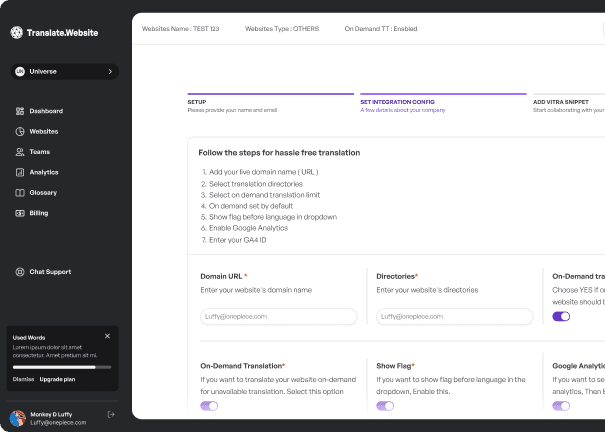
Log in to app.translate.website and retrieve your unique integration snippet from your account dashboard.
- Log in to app.translate.website
- Go to Settings → Snippet
- Copy the full <script> tag with your unique data-site-id

Step 02: Add the Script via HubSpot's Website Settings
HubSpot CMS allows you to inject custom scripts into all pages using the Website Settings → Pages section. This is the cleanest method — no HubL knowledge or theme editing required.
- Log in to your HubSpot account.
- Click the Settings gear icon in the top navigation.
- In the left sidebar, go to Website → Pages.
- Scroll down to find Site header HTML.
- Paste your Translate.website snippet in the Site header HTML text area.
- Click Save.
- Alternative: Use the HubSpot CMS Design Tools to add the script to your global template header.

Step 03: Verify on Your HubSpot Site
Visit your HubSpot-powered website and confirm the integration is working.
- Open your HubSpot website in a browser.
- Open browser DevTools (F12) → Network tab.
- Look for the Translate.website script in the resources.
- The translation widget should appear on your pages.
- Test on landing pages, blog posts, and website pages — it should appear on all.

🚀 What Happens After Saving?
HubSpot immediately injects the Translate.website script into the <head> of all HubSpot-managed pages — landing pages, website pages, blog posts, and your homepage. The translation widget appears for all visitors automatically.
The script works alongside HubSpot's A/B testing, smart content, and personalization features without any conflicts.
⚠ Recommended: Clear Cache
If you use a CDN or custom caching layer in front of your HubSpot site, clear your cache after saving to ensure the updated pages with the Translate.website script are served immediately to all visitors.
🔁 Safe & Reversible
This integration is completely reversible. To remove Translate.website from your HubSpot site, simply go back to Settings → Website → Pages, clear the Site header HTML field, and click Save. No theme files were modified, no templates were changed, and nothing was permanently altered in your HubSpot account.
💡 Why This Method Is Recommended
- Site header HTML is the HubSpot-recommended approach for adding third-party scripts globally.
- Works across all HubSpot page types: landing pages, website pages, and blog posts.
- No HubL or developer knowledge needed — pure point-and-click setup.
- Reversible — clear the Site Header HTML field to remove Translate.website instantly.
Ready to make your HubSpot site multilingual?
Point-and-click setup in HubSpot Settings — no developer or HubL knowledge required.