
Ghost CMS
Ghost is a powerful open-source publishing platform built for modern journalism and content creators. It powers blogs, magazines, and membership sites worldwide.
Install Translate.website on Ghost CMS
Running your blog or website on Ghost? You don't need to edit your theme files or touch any code to make your Ghost site multilingual.
Ghost includes a built-in Code Injection feature in the Admin panel that lets you inject custom scripts into every page of your site — without touching your theme. This is the cleanest, most upgrade-safe method for adding third-party scripts to Ghost.
Once set up, Translate.website will automatically detect visitor language preferences and display translated content in real time — across all posts, pages, tag archives, and your homepage.
This guide walks you through the entire setup from start to finish.


Use Ghost Code Injection to Enable Translate.website
Ghost's Code Injection feature is the official way to add third-party scripts — no theme editing, no developer tools, no deployment required. Here's exactly how to set it up.
Before You Begin
- An active Translate.website account with your snippet ready.
- A Ghost CMS site (Ghost Pro or self-hosted) with Admin access.
- No theme editing or developer tools needed.
- Works with all Ghost themes.
Get Your Translate.website Snippet
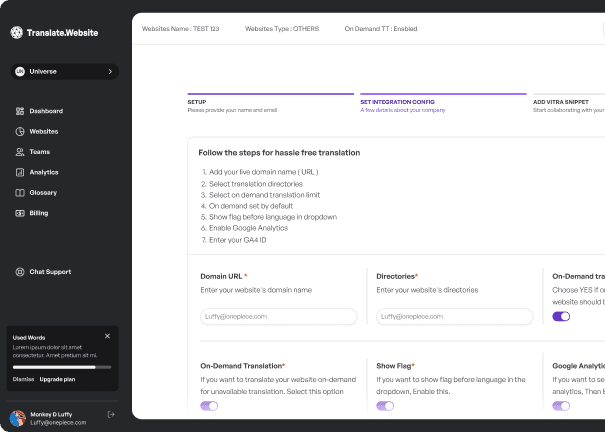
Log in to your Translate.website dashboard and copy your unique script snippet.
- Log in to app.translate.website
- Navigate to Settings → Snippet
- Copy the full <script> tag with your unique site ID

Inject the Script via Ghost Admin Code Injection
Ghost provides a built-in Code Injection feature in the Admin panel that lets you inject custom HTML/JavaScript into every page of your Ghost site — no theme editing required. This is the recommended method.
- Log in to your Ghost Admin panel (yourdomain.com/ghost).
- Click Settings in the left sidebar (gear icon).
- Scroll down to find Code Injection.
- In the Site Header text area, paste your full Translate.website script tag.
- Click Save.
- Ghost will now inject this script into the <head> of every page on your site.

Verify on Your Ghost Site
Visit your Ghost site and confirm Translate.website is loading.
- Visit your Ghost site in a browser.
- Open DevTools (F12) → Network tab.
- Look for the Translate.website script in the loaded resources.
- The translation widget should appear on your blog/site.
- Test on multiple pages — the widget should appear on all of them.

🚀 What Happens After Saving?
Ghost immediately starts injecting the Translate.website script into the <head> of all pages — posts, pages, tag pages, author pages, and your homepage. The translation widget appears for all visitors automatically.
Unlike theme-based methods, Code Injection survives Ghost version upgrades and theme changes — your snippet persists through all updates.
⚠ Recommended: Clear Cache
If you're using Ghost Pro or have a CDN configured in front of your self-hosted Ghost site, clear your cache after saving to ensure the script is immediately served to all visitors from every edge location.
🔁 Safe & Reversible
This integration is completely reversible. To remove Translate.website from your Ghost site, simply go back to Settings → Code Injection, clear the Site Header field, and click Save. No theme files were modified and nothing was permanently changed in your Ghost installation.
💡 Why This Method Is Recommended
- Code Injection is the official Ghost-recommended method for adding third-party scripts.
- Survives theme updates and Ghost version upgrades — your snippet is stored separately.
- Works across all Ghost content types: posts, pages, tags, authors.
- Reversible — clear the Site Header code injection field to remove instantly.
Ready to make your Ghost site multilingual?
No theme editing needed — just paste your snippet in Ghost Admin Code Injection and go live.