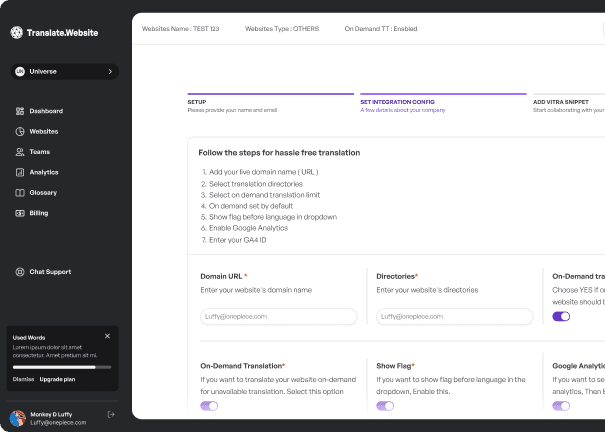

Custom Integration
Translate.website works with any website or web app — static HTML, server-rendered, or client-rendered. One script tag is all you need.
Using Translate.website with Custom Integration
If your platform or framework is not listed (or you prefer manual setup), select:
Project Technology → Others
This option is designed for:
- Custom-built websites
- Static HTML sites
- Custom CMS
- Internal enterprise portals
- Any unsupported framework
You don't need special configuration. You just need to add the Translate.website snippet manually.
Add Translate.website to Your Website
The custom integration method is the same regardless of your tech stack. Find your HTML <head>, paste the snippet, deploy. Here's exactly how.
Step 1: Select "Others" as Project Technology
When creating a project in the Translate.website app, select "Others" as your Project Technology if your platform or framework is not listed.
- Choose Others
- Complete project setup


Step 2: Add the Snippet to Your Website
Open your website's main layout file. Look for the global <head> section and paste the snippet just before the closing </head> tag.
- Open your website's main layout file.
- Look for the global <head> section.
- Paste the snippet just before </head>.
- Save the file.

Step 3: Deploy / Publish
After saving, deploy your updated site.
- Upload the updated file
- Redeploy your site
- Clear cache (if using CDN)

What Happens After Integration?
Once added, Translate.website:
- Works across all pages
- Detects dynamic content
- Supports SPA frameworks
- Preserves layout & styling
- Reduces international bounce rates
No dependency on backend language setup.
Where Exactly Should It Be Added?
For best performance:
- Inside global <head>
- In layout file used across all pages
- Not inside a single page template
- Not inside a specific component
If your platform provides:
- "Custom Header Script"
- "Global JS Injection"
- "Site-wide Code"
- "Header HTML"
You can paste it there instead of editing files.
Safe & Reversible
To disable:
- Remove the snippet
- Redeploy
No impact on site structure.
When Should You Use “Others”?
Use it when:
- Your framework is not listed
- You're using a proprietary CMS
- You're using Webflow export
- You have static hosting (S3, Netlify, Vercel static)
- You want full manual control
Ready to go multilingual?
No framework, no npm packages, no developer needed. Paste one script tag and your website speaks 100+ languages.